HIGH - Project Management System
Your awesome HIGH documentation.
Introduction
First of all, Thank you so much for purchasing this HIGH - Project Management System and for being my loyal customer.
You are awesome!
You are entitled to get free lifetime updates to this product + exceptional support from the author directly.
This documentation is to help you regarding each step of installion and customization. Please go through the documentation carefully to understand how this HIGH - Project Management System is made and how to edit this properly. No coding knowledge is required to customize this HIGH - Project Management System.
If you love our work please take out 2 minutes to give a 5-star rating to our product. Your rating will encourage us to make TeamWork Awesome, Thank You. Rate 5-Star
Installation #back to top
- Step 1 - Unzip the
HIGH - Project Management System.zipwhich you have downloaded from the Envato Market. - Step 2 - Find the
Codefolder from the downloaded package and take out all the data fromCodefolder and upload to your server. Make sure to copy.htaccessfile. - NOTE : - Please chmod
application/config/database.php,install/assets and all files inside this folderto 777. - Step 3 - Open your web browser and go to your domain url. For example:
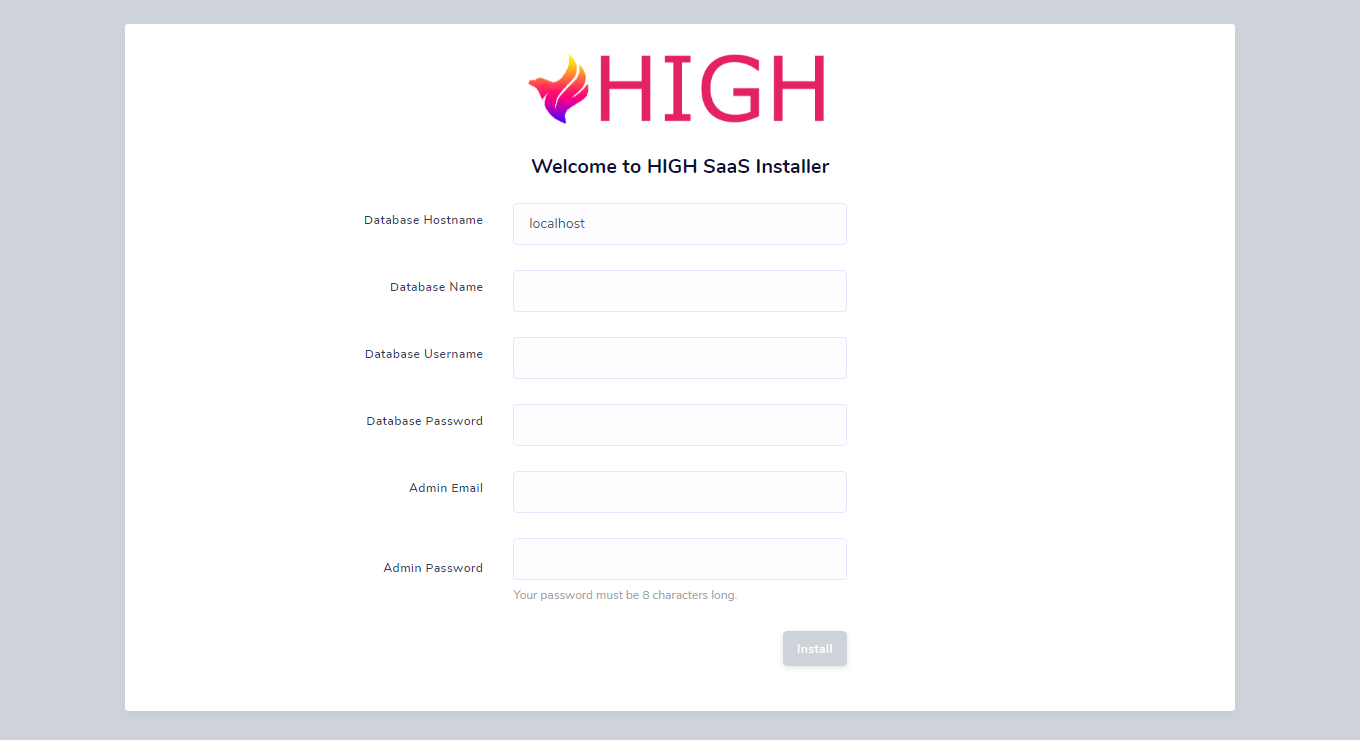
http://yourdomain.comNow you will be redirected to the installation page. - Step 4 - Enter your the
Database Details, if not created databse then create aMySql Databasevia your web hosting providers Control Panel. Then, enter yourAdmin Email and Passwordwhich will be required to login in the application. This credentials will needed on everytime you login. - NOTE : - Password requires 8 characters minimum and no whitespace.
- Step 5 - Now click on install and wait untill process finished. The system will create necessary tables in database, files and configuration, Then you will be automatically redirected to the login page.
- NOTE : - If you get
404 OR 505 errorthen wait for 30 seconds and refresh the page. Again make sure .htaccess is uploaded. - NOTE : - HIGH is now ready to run but we recommended you to first setup and customized HIGH application according to your needs from
settingssection. - You can change admin dashboard color and CSS stuff from
application/assets/css/custom.css, style.css, and components.cssfile.
General Settings #back to top
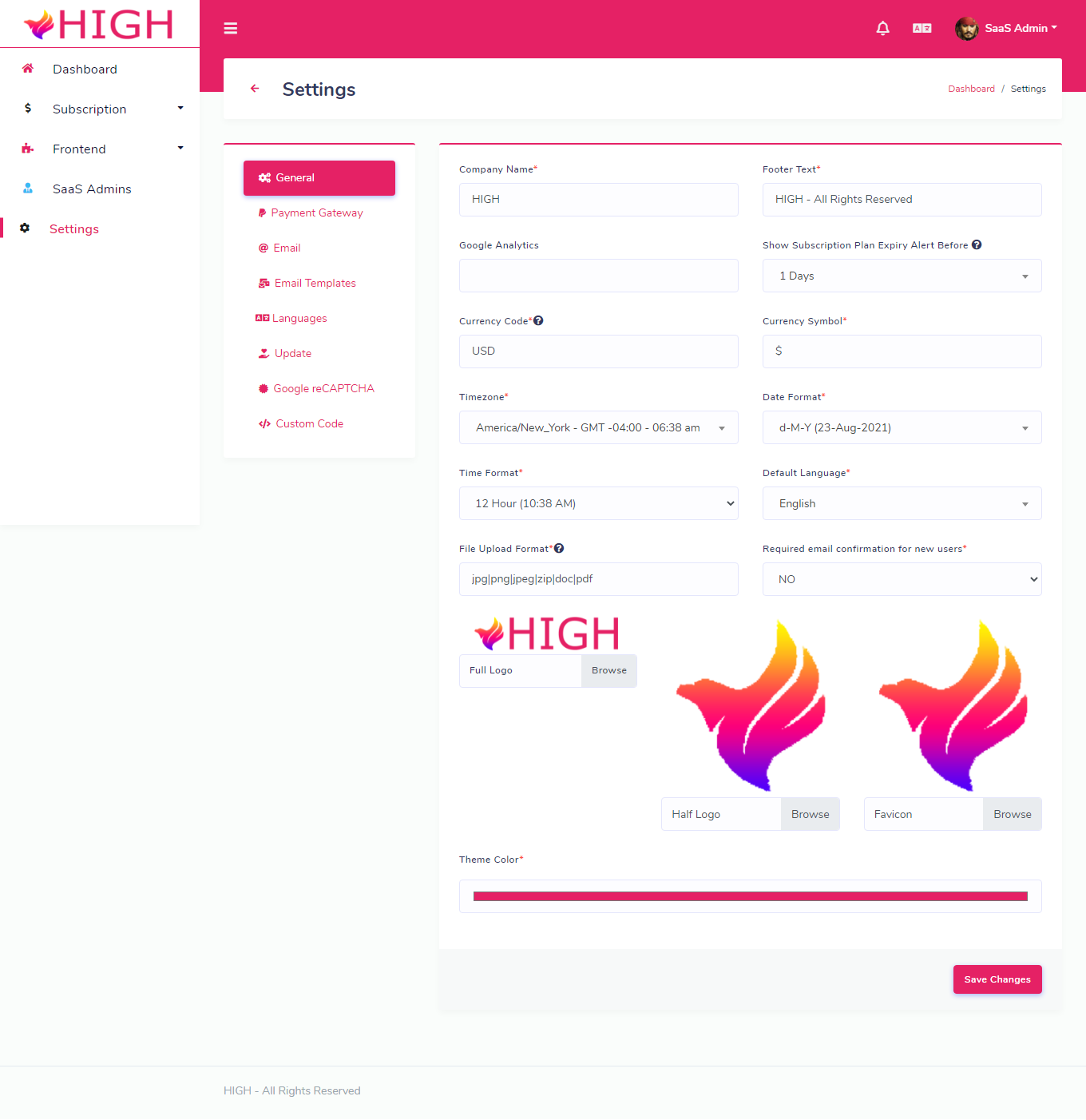
- In this section, you can change the application logos, title, footer, file type restriction and many more.
- NOTE : - Make sure you setup this section because it will comes up with HIGHs default values.
Email Settings #back to top
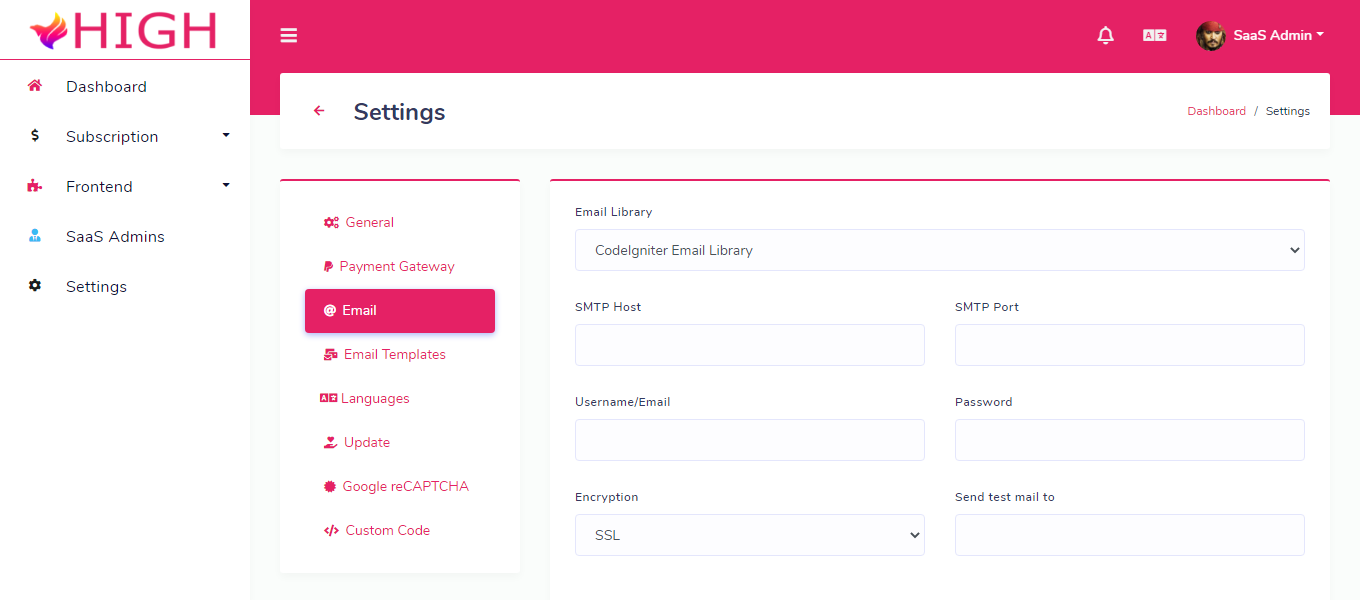
- This setting is for out-going emails. All emails will be sent using this setting so make sure add your email smtp setting here. Without email setting email functionality will not going work.
- NOTE : - Finally, Now you can do whatever you want to do. HIGH is totally ready to fly.
If you love our work please take out 2 minutes to give a 5-star rating to our product. Your rating will encourage us to make TeamWork Awesome, Thank You. Rate 5-Star
Profile #back to top
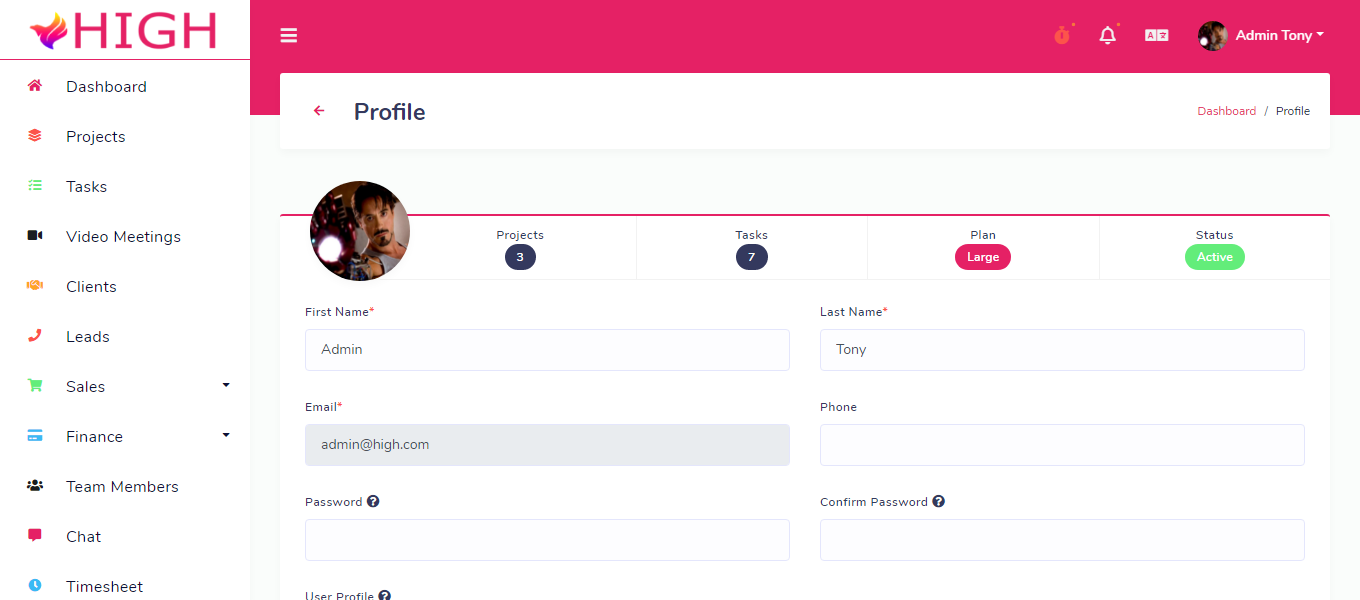
- From profile section you can update your profile details and also able to see some basic statistics of your account.
- NOTE : - Email can not be updated once its added.
Projects #back to top
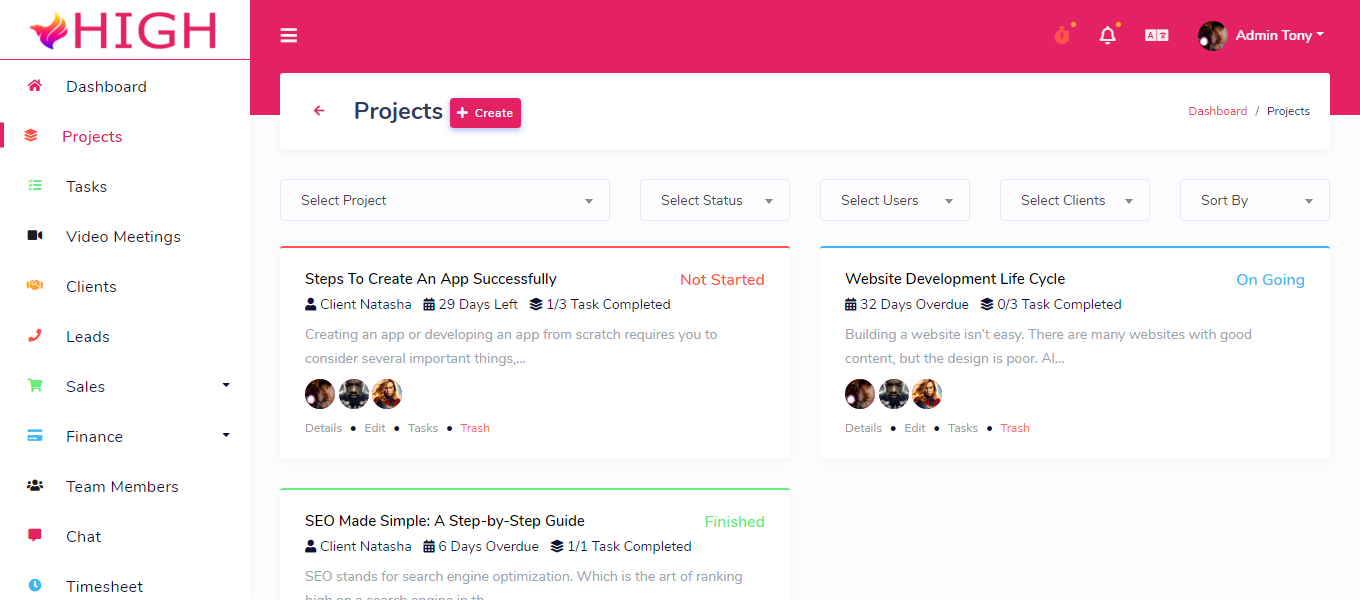
- All you project will be listed here with some basic information. You can manage your projects here like create, update, delete, add users and filter projects.
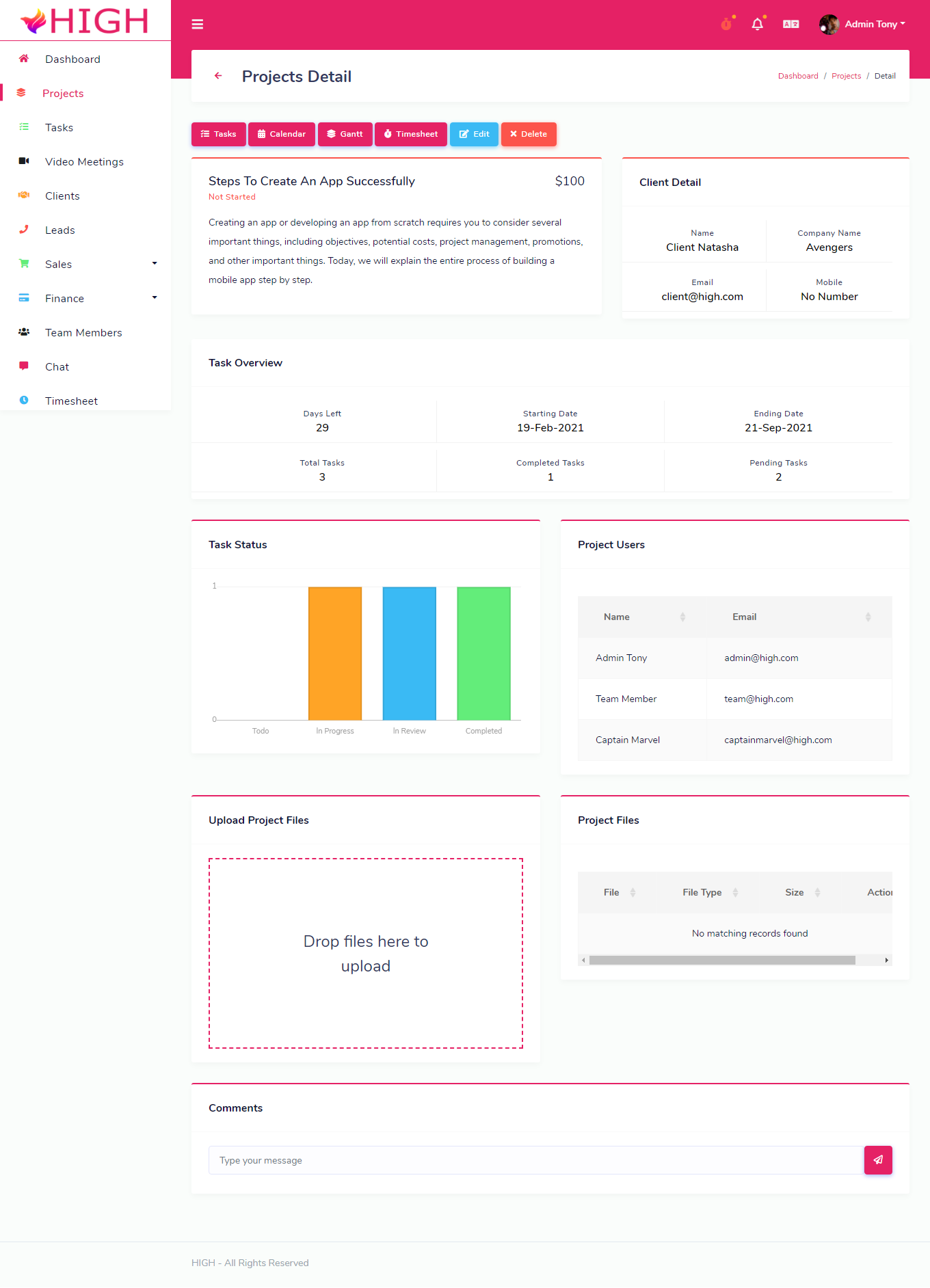
- When you click on one specific project you will get all the information about this project, this page known as project details page. Here also you can manage your project like create, update, delete and some extra features.
Tasks #back to top
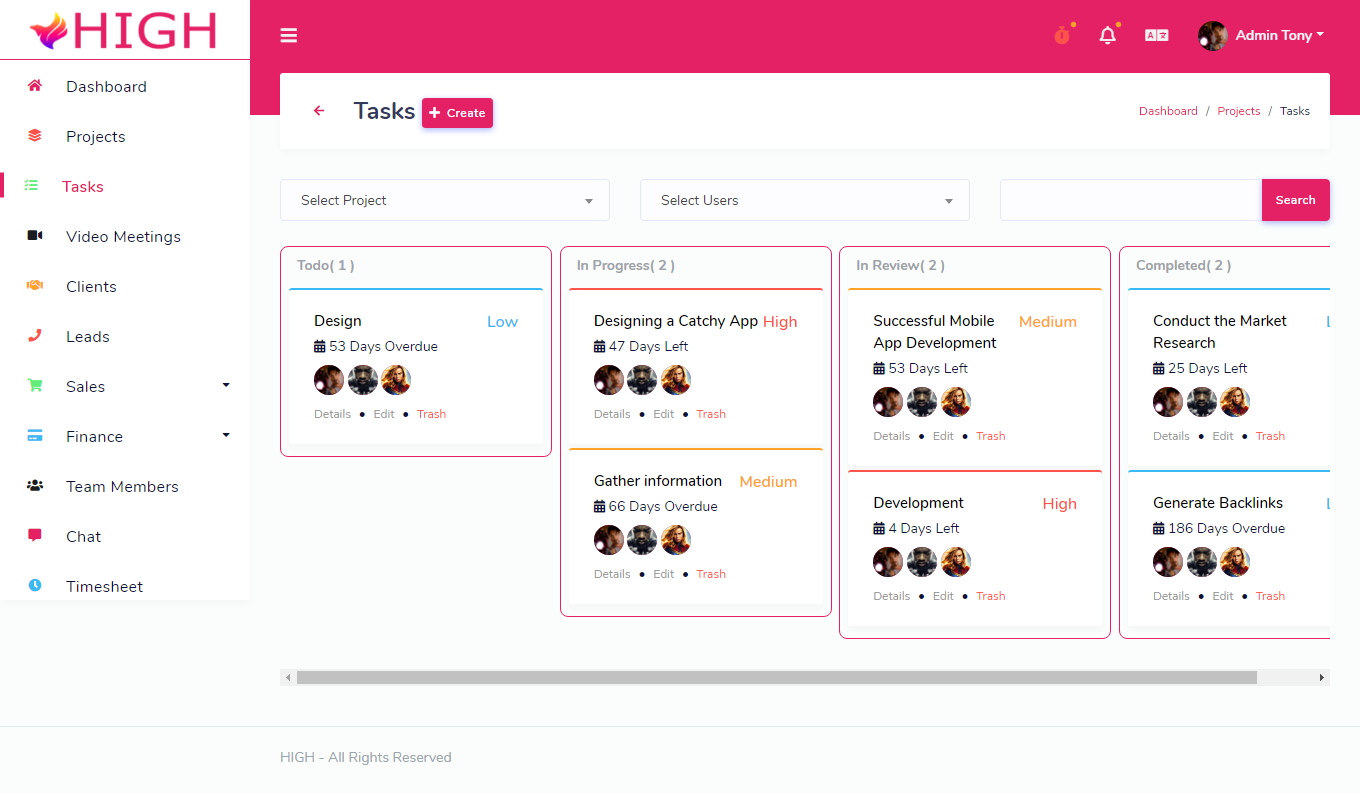
- All you tasks will be listed here with some basic information. You can manage your tasks here like create, update, delete assing them to any user. You and user can drag and drop task in the process queue. From projects section you can select tasks for specific project else all task will be listed here.
Users #back to top
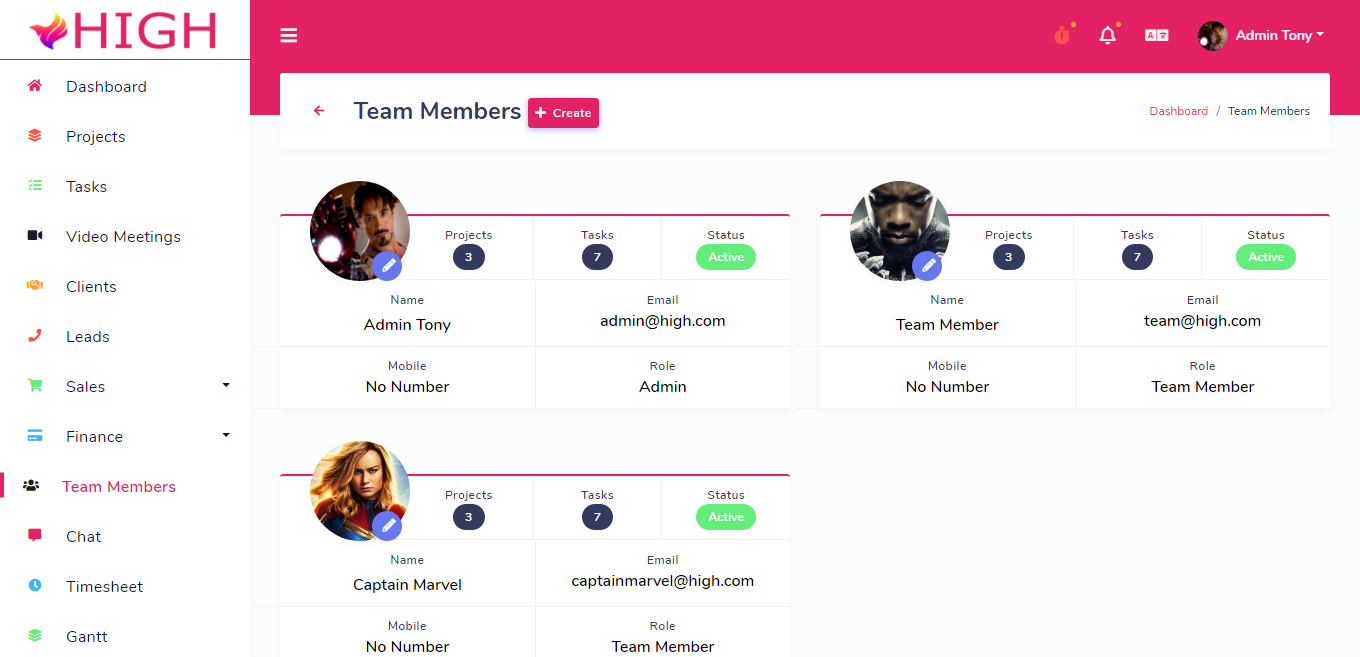
- All system user will be listed here with some basic profile statistics. Using this application you can manage your team members easily. Here you can Add, View, Edit, Delete, Active and Deactive users from the application.
Permissions #back to top
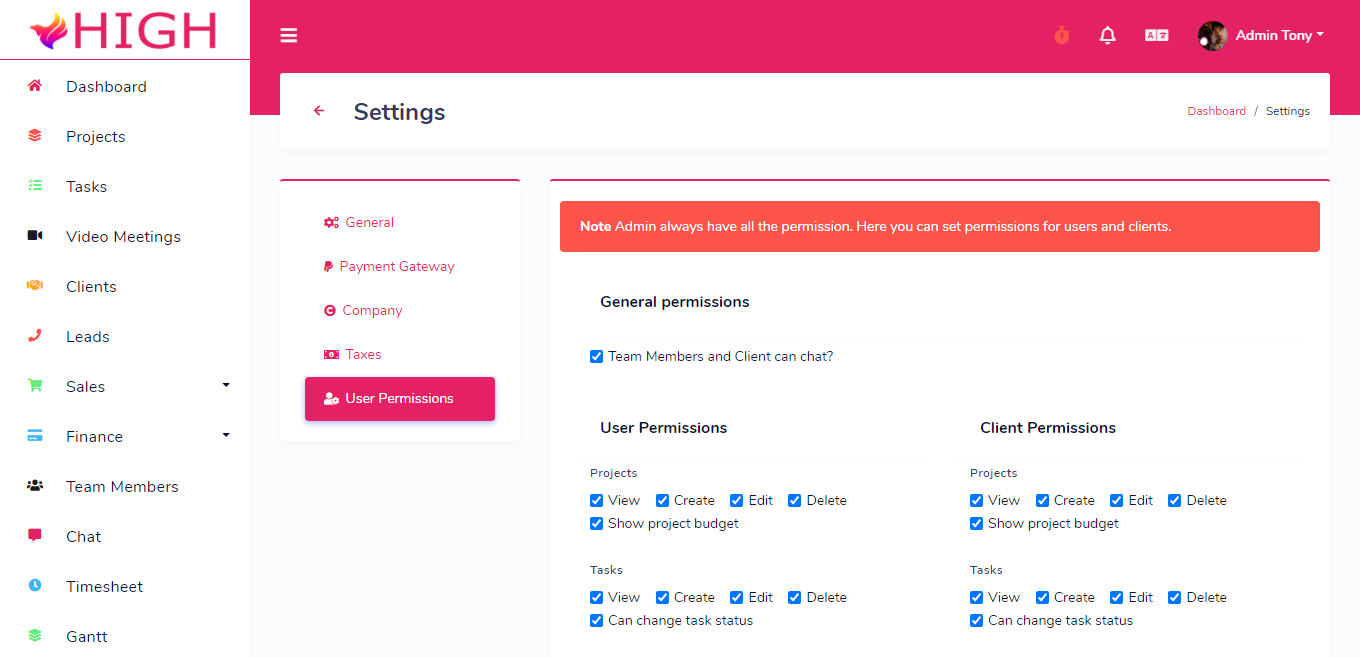
- From here admin can handle everything about users permissions in application. Admin can assign any permission to the users.
- NOTE : - Do not give settings permissions to the users.
Update #back to top
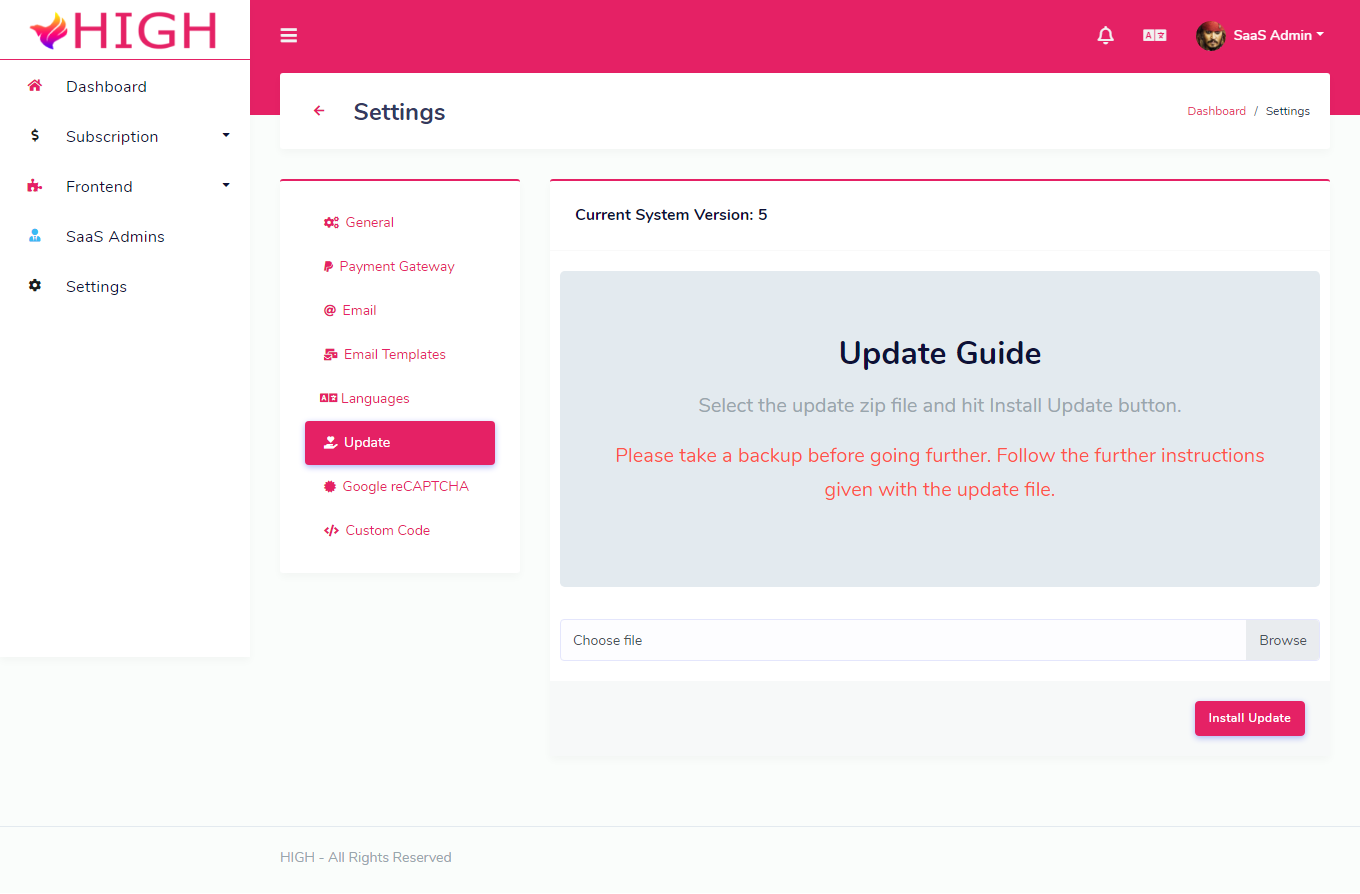
- One click update system. Here you can update your application. You just have to upload your update zip file and rest leave on our system.
- NOTE : - Please backup all files and database before start the installation of updates.
Thanks and Regards #back to top
Again thank you so much for purchase this application. We are trying to add and improve new features regularly. Hopefully you'll enjoy using the app. If you have any query or suggestion or feedback, please contact at Support
If you love our work please take out 2 minutes to give a 5-star rating to our product. Your rating will encourage us to make TeamWork Awesome, Thank You. Rate 5-Star